


Getting used to your new Firefox 4 web browser? If so, you might have seen some improvements in the Location Bar. The updated features make browsing the web a cinch, so it's no wonder why more and more Internet junkies are calling it the Awesome Bar. It's faster and easier to use, and there's even some optional tweaks that you can employ to make your Internet experience smooth and effortless.
Using the Location Bar, aka Awesome Bar, to Search Fast
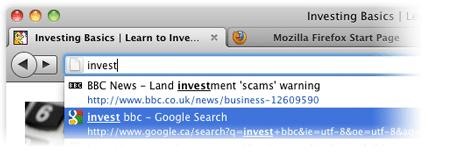
So, it's no secret that if you type in a website URL into the Location Bar and press enter, you'd go directly to that webpage. And standard in Firefox 4 is the newly updated autocomplete function. Just type your term into the Location Bar and autocomplete will include all the possible matches from your browsing history, bookmarked sites and open tabs. The more you use Firefox, the more it learns and adapts to your preferences, offering better matching results. But that's not all you can do.
Step 1 Domain Guessing: Auto-Completing URLs
Whenever you enter an incomplete URL into the Location Bar, Firefox attempts to fix the URL by adding a prefix (www.), suffix (.com) or both. Examples:
If typing www.wonderhowto, Firefox would append .com so it was www.wonderhowto.com.
If typing wonderhowto.com, Firefox would prepend www. so it was www.wonderhowto.com.
If you type wonderhowto, Firefox would add both for www.wonderhowto.com.
Don't like this function? You can turn it on or off by editing your Firefox configuration.
Turning Domain Guessing ON or OFF
1. In the Location Bar, type in about:config and press return (enter).
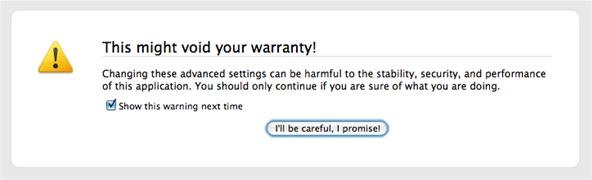
2. A warning box may appear stating this might void your warranty. For the purpose of this article, uncheck the box next to Show this warning next time, then click the I'll be careful, I promise! button to proceed.
3. Type fixup into the filter box.
4. Double-click on browser.fixup.alternate.enabled to change it to either true (enabled) or false (disabled).

Changing the Domain Guessing Prefix/Suffix
On the same about:config page, double-click on browser.fixup.alternate.prefix to change the prefix (www.) or double-click on browser.fixup.alternate.suffix to change the suffix (.com, .net, .edu, etc.).
Tip
- Domain Guessing only works if you have Keyword Search set to false (disabled). See below.
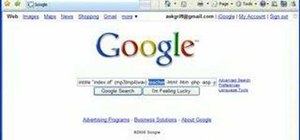
Step 2 Keyword Search: Turn the Location Bar into Google Search
We already now how gifted the Location Bar is at finding website URLs, but what if you want to do a quick Google Search? Normally, you would just use the separate Google Search box in your Firefox Toolbar, but when performing basic queries, the "Awesome Bar" can reroute you to a Google Search results page via a keyword search service. Firefox 4's default is Google's Browse by Name.
If you enter a keyword into the Location Bar, Firefox 4 will automatically send your request to the keyword search service and show you results almost instantly.
Tip
- This does NOT work if Domain Guessing is turned on. To use Internet Keyword Search, make sure to set browser.fixup.alternate.enabled to false (disabled). They do not function properly when simultaneously enabled.
Turning Domain Guessing ON or OFF
1. Go to about:config.
2. Search for keyword.enabled.
3. Double-click on keyword.enabled to change it to either true (enabled) or false (disabled).

Change the Keyword Service
If you're not fond of Google Search for some reason, you do have the choice of using another keyword search service. You can specify and valid URL to do your Keyword searches. You just need to modify the keyword.URL preference.
1. Go to about:config.
2. Search for keyword.URL.
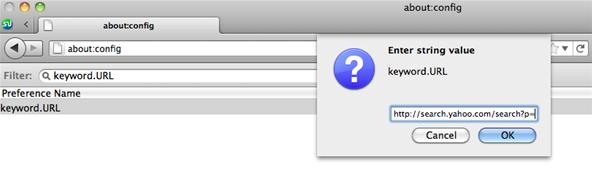
3. Double-click on keyword.URL to enter a new string value.
4. Enter the search URL for your desired search service and press OK.
To find the search URL you need to enter, simply go to your desired search service and perform a simple search. Then, copy the basic, beginning part of the URL before the actual search string. See below for some examples.
- Yahoo! Search : http://search.yahoo.com/search?p=
- Bing Search : http://www.bing.com/search?q=
- AOL Search : http://search.aol.com/aol/search?q=
To reset the Keyword Search to Google, right-click or hold down the Control key while you click on keyword.URL and select Reset.
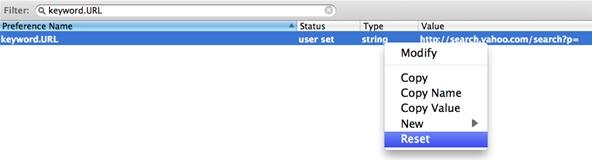
Tip
- The Internet Keyword Search preference does NOT affect any Smart Keyword Searches from the Location Bar (see below).
Step 3 Smart Keyword Search: Easy Searching on Your Favorite Sites
Have a few sites you search on religiously? Always looking up detailed definitions on Wikipedia? Constantly searching for movies on IMDB? Well, with Smart Keyword Search, you can program Firefox 4 to search those specific websites directly from the Firefox Location Bar.
To set a Smart Keyword for any website:
1. Go to your frequented website of choice (must have an internal search box).
2. Right-click or hold down the Control key while you click in the search field box.
3. Select Add a Keyword for this Search...
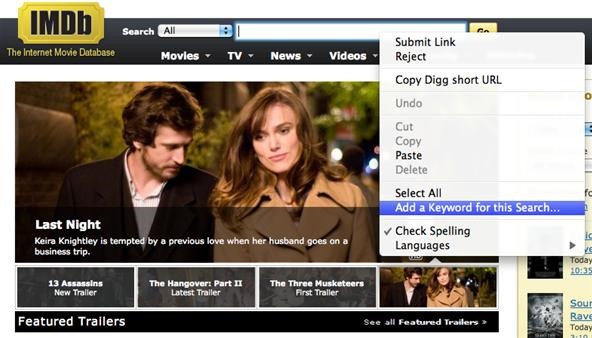
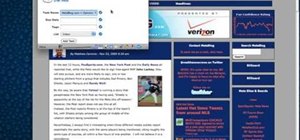
4. A prompt will open to bookmark the webpage and add a Keyword. Enter an appropriate name for your bookmark, choose your bookmark location and enter in your Keyword. Then, press Save.
Tip
- It's best to create a new folder to store all of your Smart Keyword bookmarks in, that way they're separated from the rest. I entitled mine Smart Keyword Search and stored in the Bookmarks Menu.
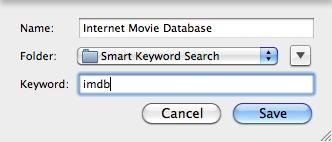
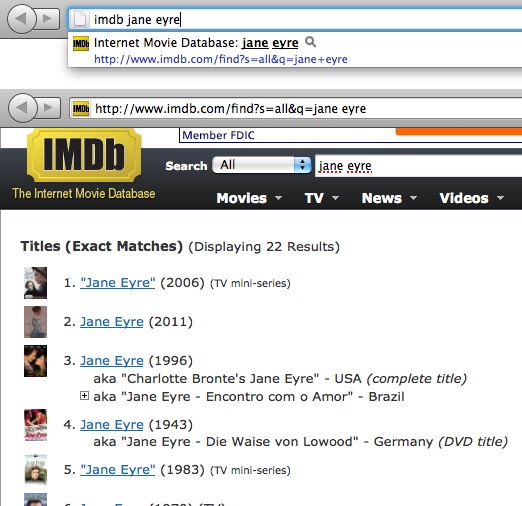
Now, whenever you want to perform a search on your favorite websites, simply type in your chosen Keyword (in this case, imdb), then a space, and then your search query. When you press return (enter), you should be directed to that website's normal search results.
If you're too lazy to do this for all of your favorite sites, you may consider using the Firefox add-on InstantFox. This extension has done all the work for you, with smart keyword shortcuts already preprogrammed.

Here are the ones it currently supports:
- g » for Google Search
- i » for Google Images
- m » for Google Maps
- y » for YouTube
- t » for Twitter
- w » for Wikipedia
- a » for Amazon
- e » for eBay
- b » for Bing
- yh » for Yahoo
- wa » for WolframAlpha
- f » for Weather Forecast
- c » for Calulator
You can get the InstantFox add-on here.
Step 4 Google Advanced Search: Maximizing Keyword Searching
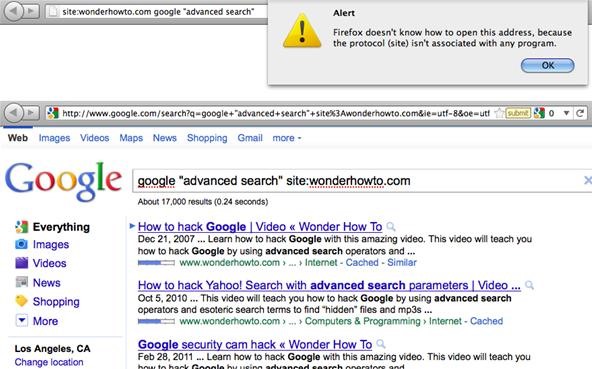
If you have all of the advanced search shortcuts and operators down for Google Search, then you'll be glad to know that you can use them right in the Location Bar in Firefox 4. If Keyword Search (Step 2) is enabled, you can use the advanced search shortcuts to return more fine-tuned results in Google.
You cannot use any operators at the beginning of your query, though, because Firefox will confuse it with an address, not a keyword. You can bypass this either by making sure it's not the first thing in your search query in the Location Bar or by using Smart Keyword Search (Step 3).
Step 5 Instant Results: Choosing and Loading Webpages Immediately
In addition to the above tips on searching super fast in the Location Bar, there's still more to maximize the potential of Firefox's "Awesome Bar".
Speak Words
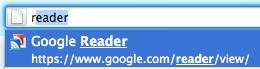
Install the Speak Words add-on from Mozilla Labs and Firefox will do all the thinking for you, based on your search habits. Just type a letter into the Location Bar and it will automatically finish the word for you based on your favorite past searches. Not only that, it highlights the first result shown, so all you have to do is press return (enter)!
Instant Preview
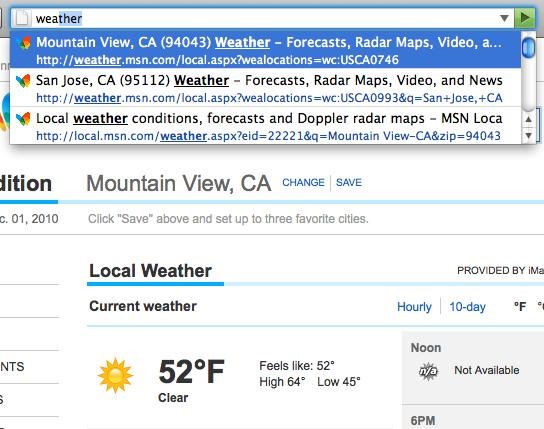
A continuation of Mozilla Lab's Speak Words, Instant Preview mimics Google Instant Search, where you type and the webpage loads in your browser window before you finish typing. By the time you confirm the result you want, the webpage may already be completely loaded!
Just updated your iPhone? You'll find new emoji, enhanced security, podcast transcripts, Apple Cash virtual numbers, and other useful features. There are even new additions hidden within Safari. Find out what's new and changed on your iPhone with the iOS 17.4 update.







Be the First to Comment
Share Your Thoughts