



It seems like nowadays, whenever Facebook rolls out a new feature, it's immediately controversial. Social Ads put your name and face in the spotlight, Instant Personalization shared your information with partner sites, third-party apps were allowed to access your home address and phone number, and now Tag Suggestions implement facial recognition software to automatically identify your friends in uploaded photos. Most are calling it problematic or creepy, some insinuate CIA involvement, and it even prompted Nightline to start an odd facial recognition challenge. But no matter how you feel, you always have a choice... or do you?

Facebook has been rolling out this new feature since last December, with it now available in most countries. Tag Suggestions uses the existing tag structure to help identify your friends in newly uploaded photographs, effectively cutting down the work on your end. When you're tagged in a photo, Facebook associates it with your account and stores the information. When a friend uploads a photo of you, it automatically references the information from your previously stored tags and looks for comparisons in their database, effectively finding you through facial recognition and prompting the friend to "tag" you.
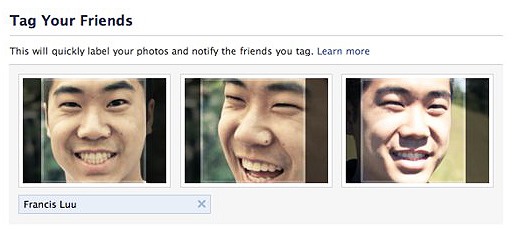
If you like the idea of this feature, then do nothing and reap the benefits. If you think there's something going on besides an easier-to-use Facebook, then you have two options:
- Un-tag yourself in all photographs. Facebook states: "If you've never been tagged in a photo on Facebook or have untagged yourself in all photos of you on Facebook, then this information hasn't been created or stored for you."
- Opt out of Tag Suggestions so friends cannot find your face.
Some think that no matter what you do, Facebook will still use their facial recognition software to keep track of you, but who really knows for sure? Just because they say they don't, doesn't mean that they aren't. For opting out of Tag Suggestions, just follow the easy directions below.
Step 1 Log In
It's a no-brainer, but make sure you're logged into your Facebook account.
Step 2 Account
Click on the Account tab in the top right-hand corner.

Step 3 Privacy Settings
From the drop-down menu, select Privacy Settings.
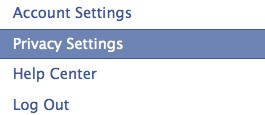
Step 4 Custom
Select the Custom tab on the left-hand side of the Sharing on Facebook section.
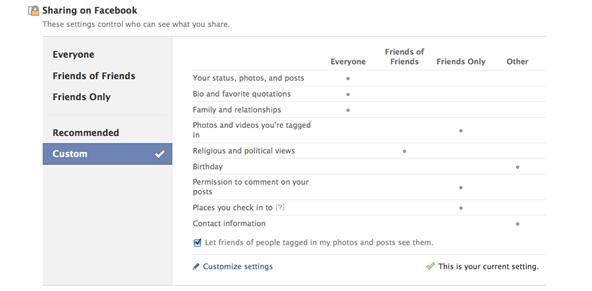
Step 5 Customize Settings
Select the Customize Settings option at the bottom.

Step 6 Edit Settings
In the Things others share section, click on Edit Settings under Suggest photos of me to friends.
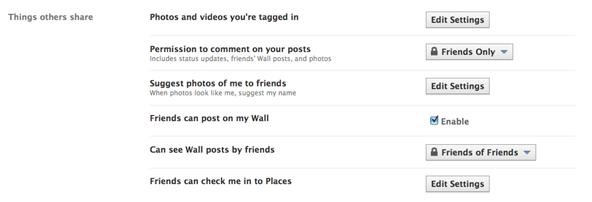
Step 7 Disable
A popup box will appear. On the right-hand side, click on the drop-down menu that which says Enable and change it to Disable.
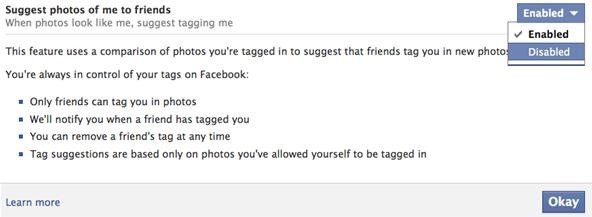
That's it. Once this feature is disabled, your friends will no longer be able to tag you from Facebook's suggestions. They can still tag you manually, but Facebook won't prompt them.
For more ways to increase security on Facebook, check out out article, How To Protect Your Facebook Profile: 10 Ways to Increase Privacy.
Just updated your iPhone? You'll find new emoji, enhanced security, podcast transcripts, Apple Cash virtual numbers, and other useful features. There are even new additions hidden within Safari. Find out what's new and changed on your iPhone with the iOS 17.4 update.


















1 Comment
Great article, thank you.
Share Your Thoughts